Plugins for GameMaker
Add the RefresherTowel Games package source to GameMaker, then install and update your plugins through the Package Manager. Follow the step by step guide below to get set up.
Step by step guide.
GameMaker handles plugin installation and updates through the Package Manager. Follow these steps to add the RefresherTowel Games package source and install your plugins.
- 01
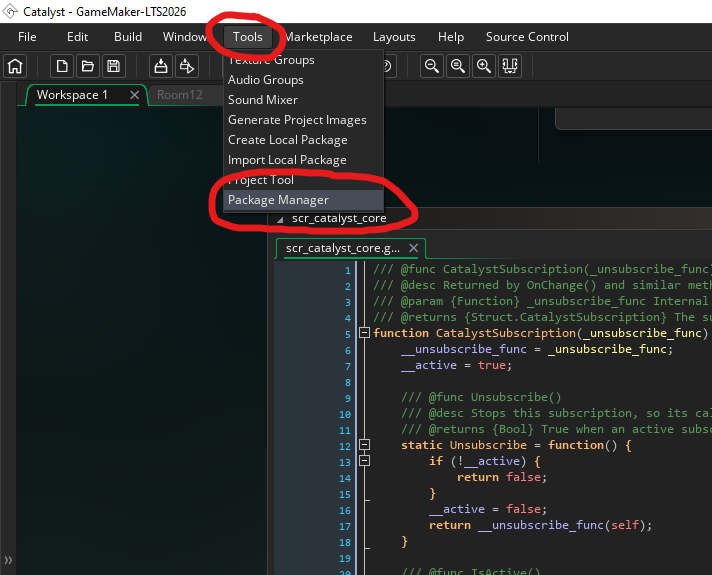
Open Package Manager
In GameMaker, open Package Manager from the main IDE.
- 02
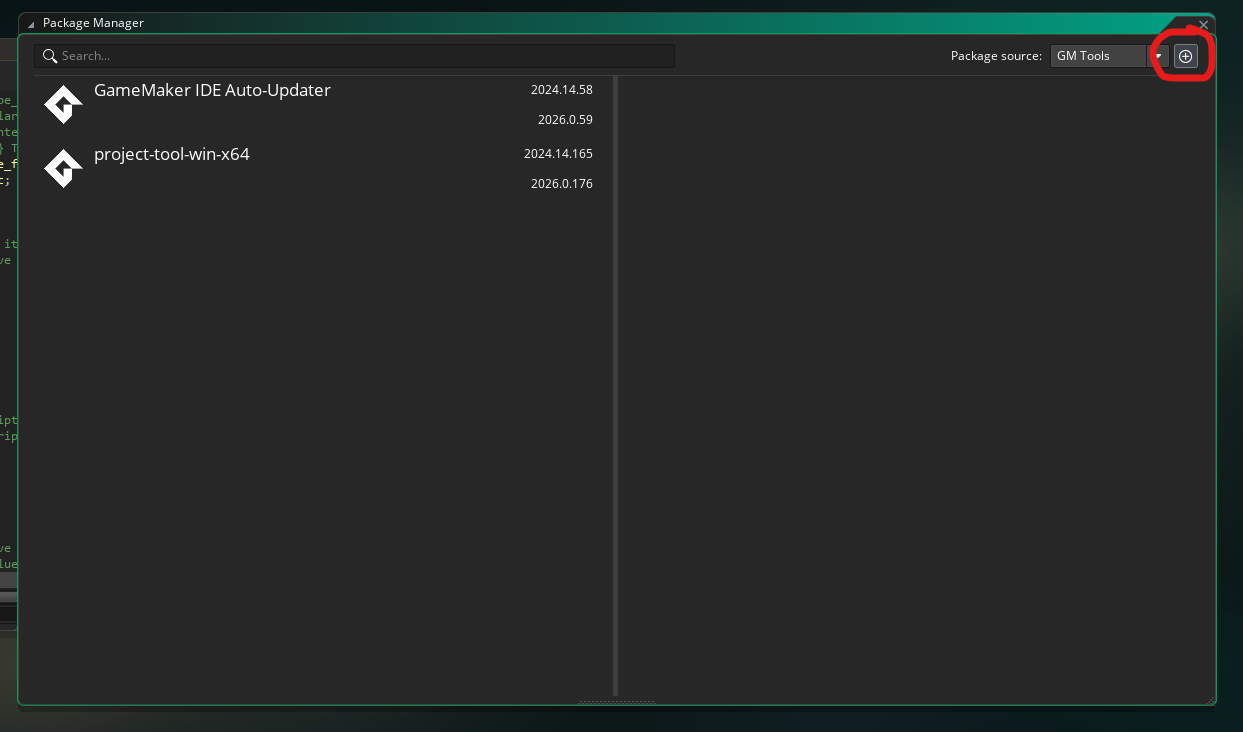
Open Package Sources
Switch to the Package Sources view. This is where GameMaker keeps the registries it can install packages from.
- 03
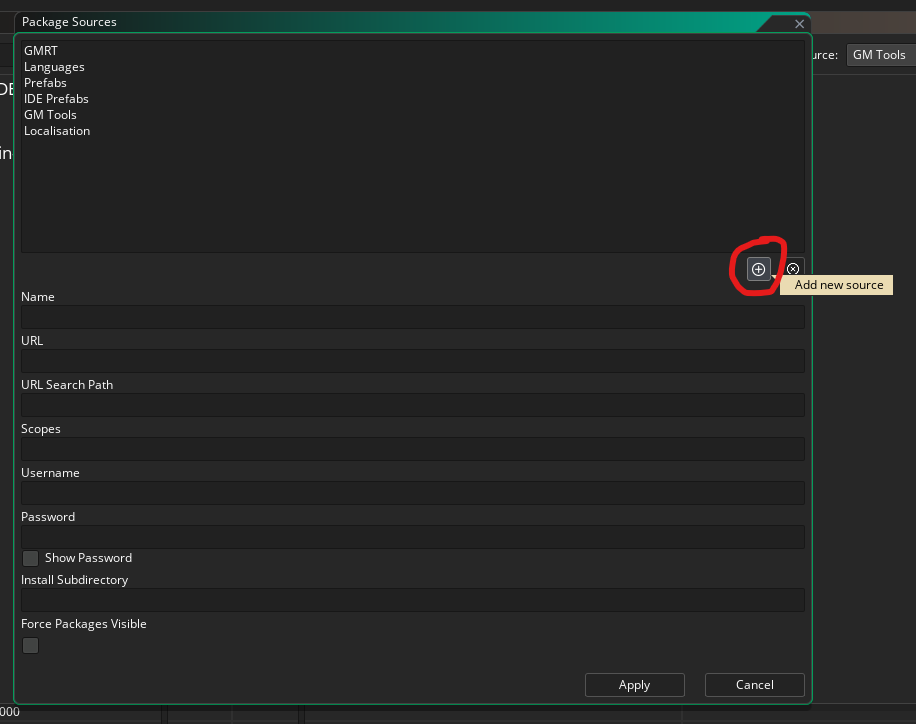
Add a new source
Choose Add New Source to create the new package source.
- 04
Enter the Package Source details
Enter the Name, URL and URL Search Path shown below the image in the new source form, then click Apply.
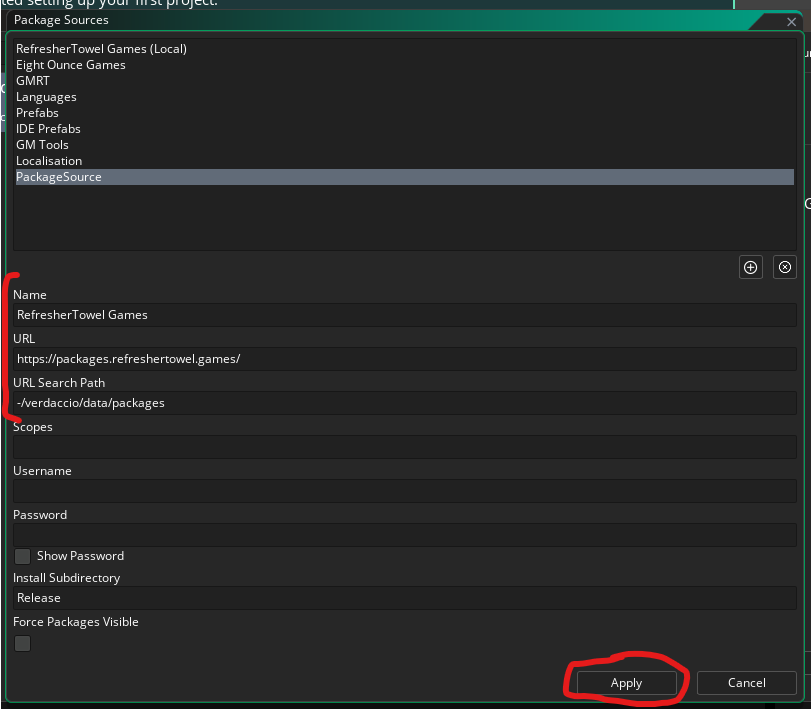
RefresherTowel GamesRecommended source
- Name
RefresherTowel Games- URL
https://packages.refreshertowel.games/- URL Search Path
-/verdaccio/data/packages
Leave Scopes, Username and Password blank. No username or password is required for public packages.
RefresherTowel NPM RegistryAlternative source
- Name
RefresherTowel NPM Registry- URL
https://registry.npmjs.org/- URL Search Path
-/v1/search?text=@refreshertowel
Leave Scopes, Username and Password blank. No username or password is required for public packages.
- 05
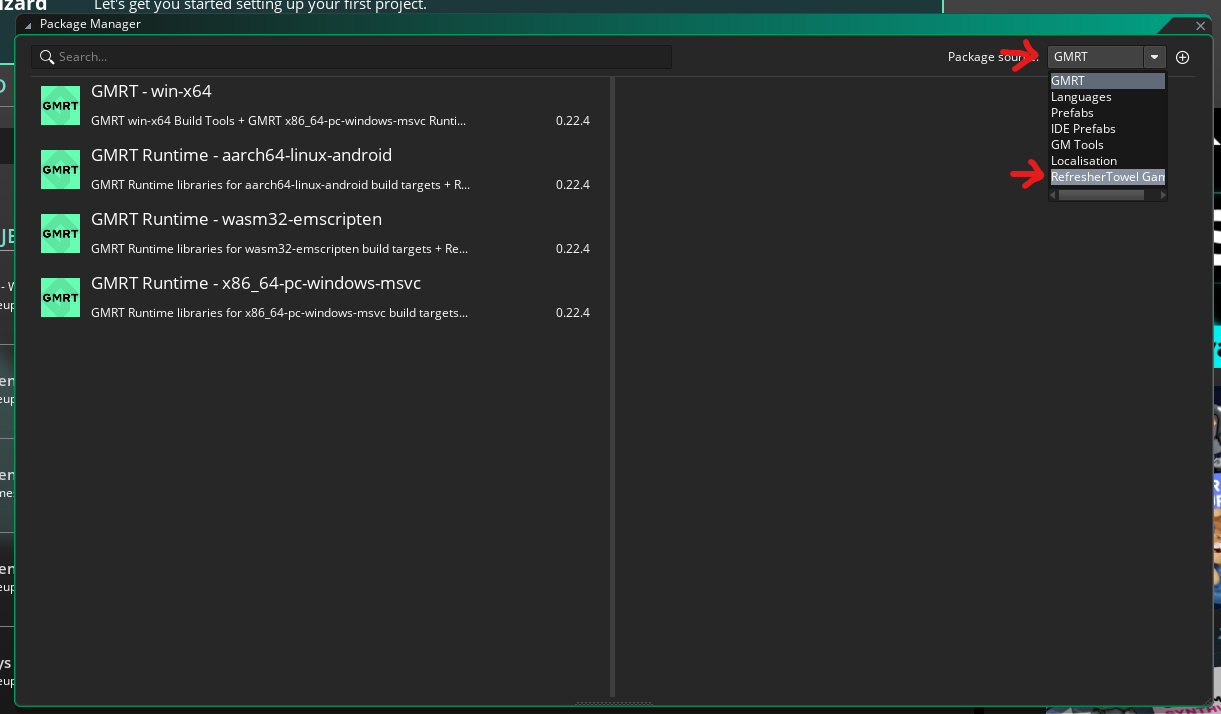
Swap the current Package Source
GM will stay on its default package source, so swap over to the package source you just added.
- 06
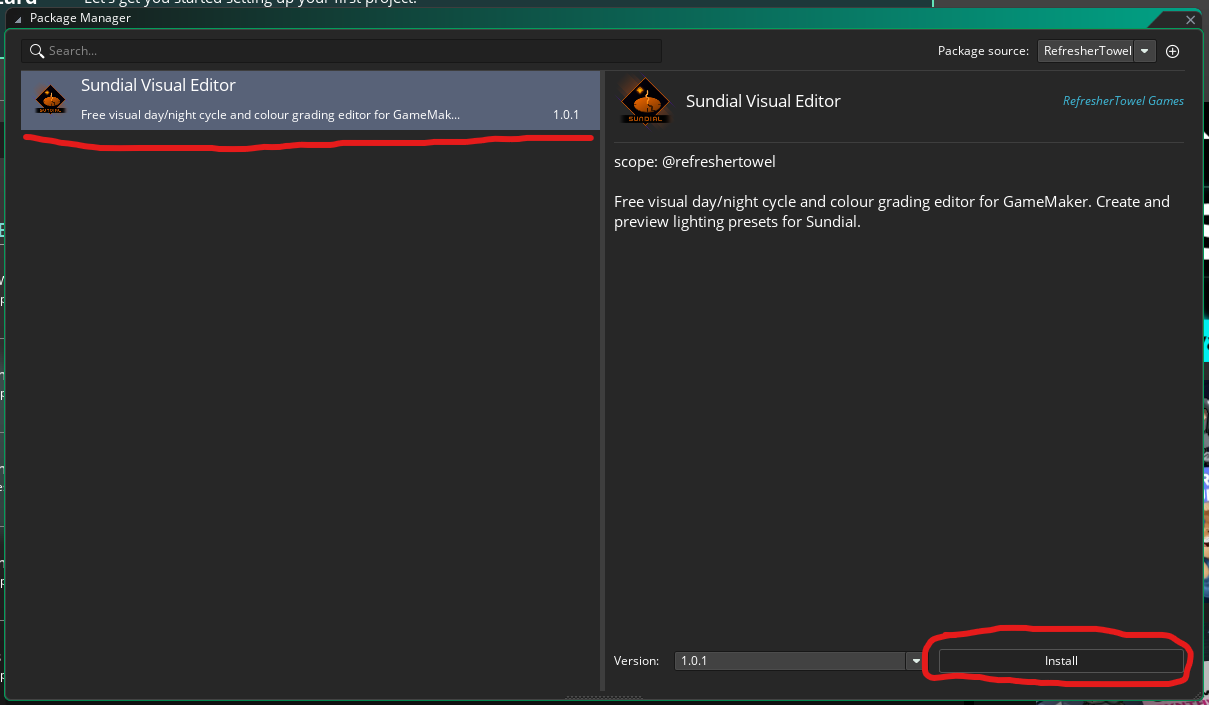
Install your desired plugin
Search through the plugin list to find the plugins you want to add. Click on the one you want and install it.
Available Plugins Icon Name Description Enable JavaScript to load available plugins.
- 07
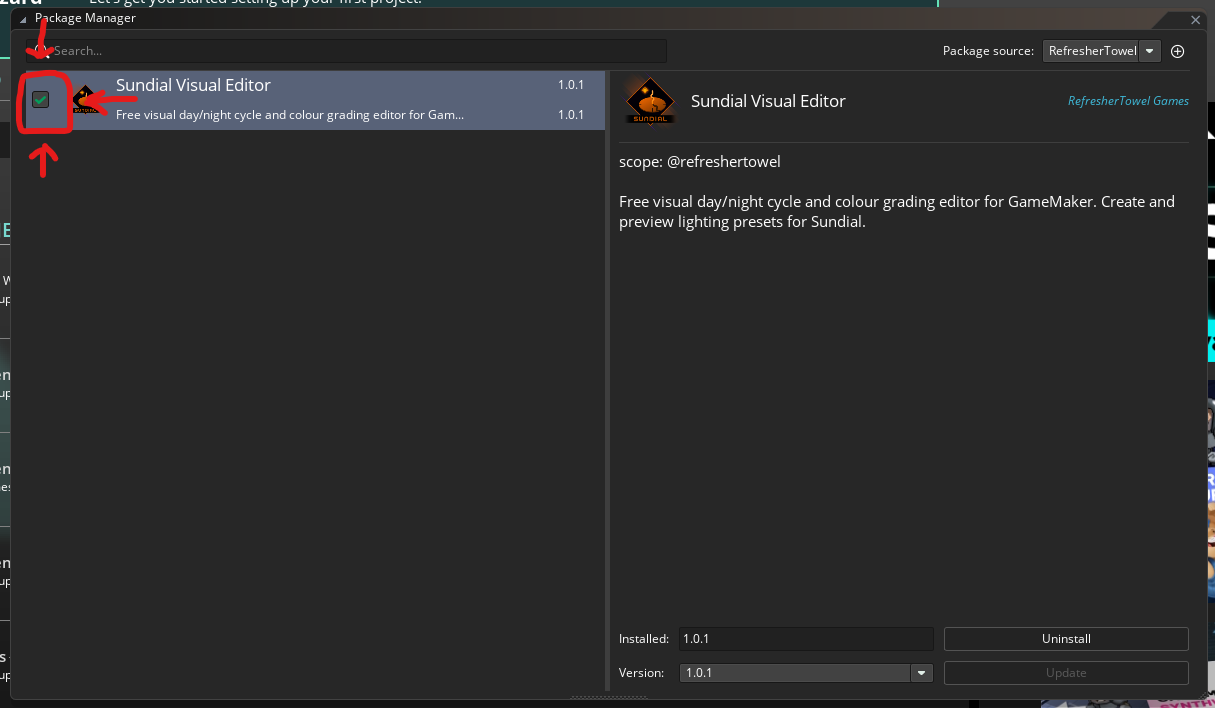
Check the checkbox!
If there is a checkbox to the left of the plugin name after installation is complete, ENSURE YOU SELECT IT, otherwise GM won't show the plugin.
After that, reboot GameMaker and you're done!
- 08Optional
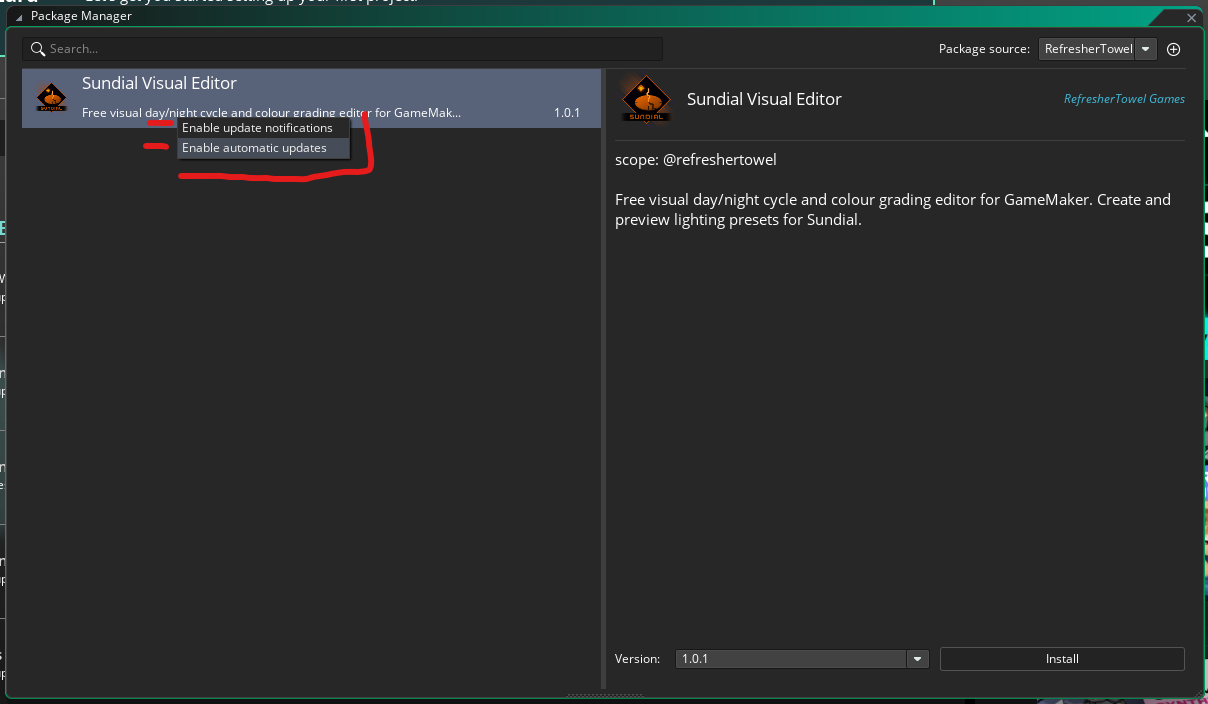
Enable automatic updates
Optional: Right click on the plugin name and select "Enable automatic updates" and/or "Enable update notifications" so GameMaker will keep your plugins current.