
So, I’ve just released the new trailer and demo for my game, Dice Trek:
And I’ve gotten a lot of questions over the time I’ve worked on it about the 3D sprites. I’ve been meaning to write a guide for quite awhile now, but never managed to find the time. Well, I’ve found the time! So this is my very comprehensive guide to making the maps required to light pixel art in cool 3D ways. Oh, and if this guide is helpful to you at all, please I beg for nothing in return but just a little crumb of a wishlist!
Getting Started.
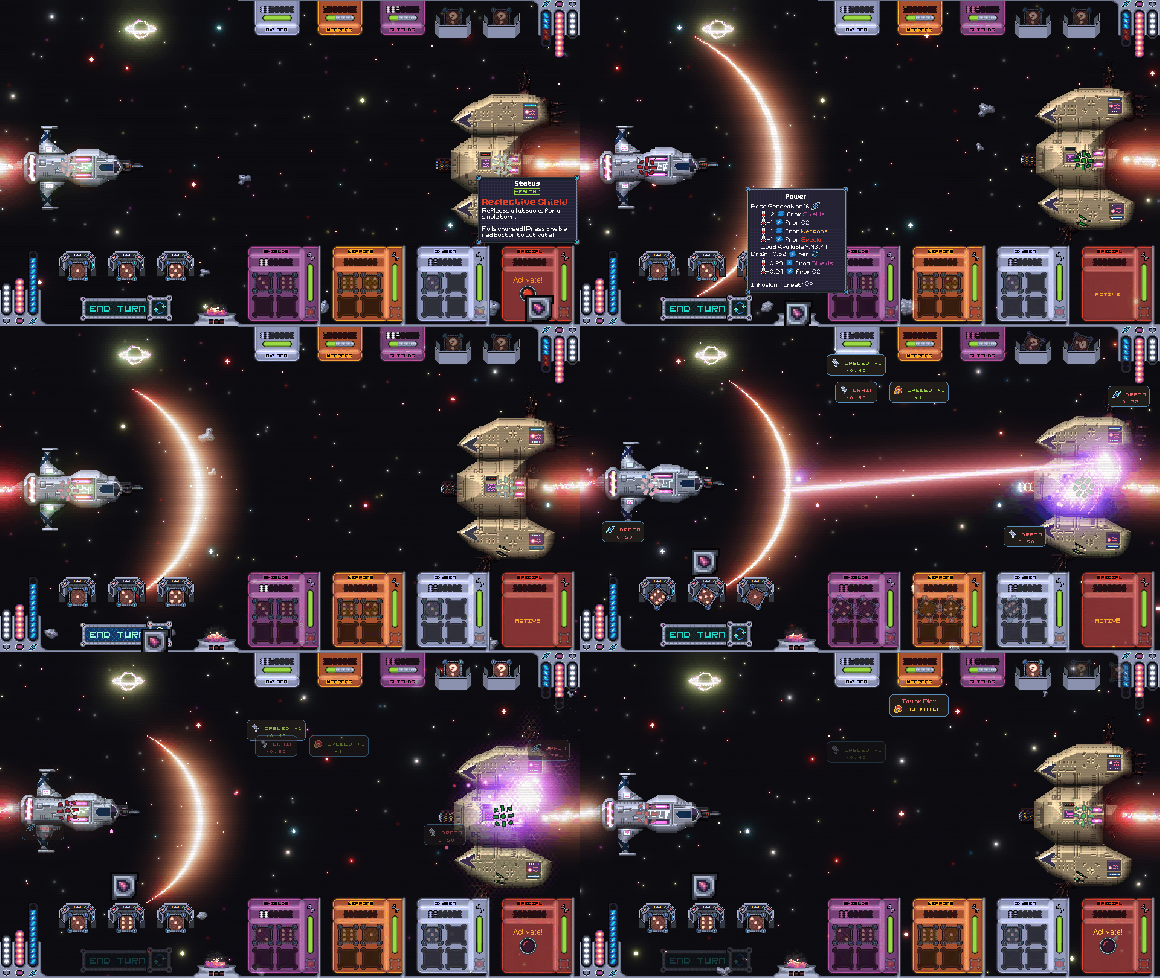
First, let’s start off with what this guide isn’t. This is not a tutorial on how to code a lighting system. That is above my paygrade. I’m going to assume you’ve already got a lighting system, preferably a PBR one (though most of what I’m going to go through will be applicable to any lighting system that uses normal mapping), and this guide is going to be about how you would go about making the maps needed for the lighting system in a pixel art style. The end result should look something like this, once its in the lighting engine of your choice.
To start off, we’ll need a few programs.
- A sprite editor (I prefer Aseprite, which you can purchase or compile yourself for free from the github)
- A program called ModLab, which is available for free from Steam (link).
- (Optional) AwesomeBump, also available for free (link).
That’s about the long and short of the setup. Let’s dive into the meat and potatoes.
The diffuse map
The diffuse map is your “base” sprite. It is what your sprite looks like without any lighting or shading applied to it. Here’s an example:
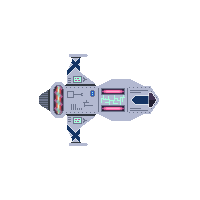
Looks pretty flat and boring, doesn’t it? Well, we’re going to spruce it up over the course of this tutorial. You’ll notice how there’s literally no shading applied. I haven’t darkened the edges of the sprite (as one might expect from the edges curving away from us) or cast any shadows along the body.
That is kinda the point of a diffuse map. It is the representation of the “platonic” object, the object that exists in a shadowless void, with whatever colour put down being the “pure” colour before light hits it. At least, classically that’s what they are.
However, we’re breaking rules already by trying to use PBR lighting in conjunction with pixel art sprites, so feel free to add shading if you want. You can get some interesting stylised looks by combining artistic shading on a diffuse map with the effects of a lighting system. So if your base sprites are already shaded, don’t stress too much. See how they look after you’ve got them in your game and then make a decision about whether you need to remove the shading (or maybe just change it a little bit).
Now, how do we get the 3D information the lighting system needs from that diffuse map? Well, we have to draw it. This is known as a height map.
Height maps.
Imagine, as you stare glassy eyed at your monitor, that you are looking through a window at your sprite. Reach out and caress it with your mind. Maybe try to touch it physically? Well, if you did try to touch it physically, what is the first part you would be able to reach? In other words, from the perspective the sprite is drawn at, what pixel on it would be the closest to you in 3D space? Can you picture it? Well, that pixel, that pixel is now white. And the second closest pixel is ever so slightly grayer. And so on, going back through the depth of the sprite until you get to the last visible pixel, which would be the furthest point away from you in 3D space. That last pixel? It should be just a smidge above pure black.
Congratulations, you’ve made a height map. A height map represents 3D information on a 2D plane by using the brightness of each pixel as a representation of how “close” to the viewer it would be if it were actually 3D. The closer the pixel, the closer to white it is, and the further away it is the closer to black. You don’t necessarily need to stretch the range from pure white to pure black either. You can have the furthest pixel be a middling grey and the closest pixel be a grey-ish white. Whatever, as long as there is some brightness gradient between the furthest and closest pixels.
What does that actually look like? Here we go (I’ll include the diffuse map alongside it for ease of comparison):
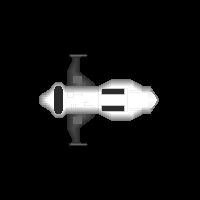
Maybe it makes a little more sense now. How do you go about achieving this? Well, I use a combination of a little Aseprite script I wrote, which is basically a pillow shader, and some good old fashioned elbow grease. You can find my height map script here, alongside a little guide on how to use. I’ve found it super useful in my workflow, and it would take a lot more effort to get a height map going if I didn’t have it, so be sure to check it out if you use Aseprite.
But generally, you want to have a vision of the 3D space the sprite is occupying, and just start shading stuff in to match it. You get faster the more you do it, and I’ll usually spend less than an hour on a height map nowadays. This is actually the most important step in the process (beyond having a pretty looking diffuse map), so don’t feel bad if you’re spending a bit of time on it.
You’ll also likely be revising it as you go, so I usually do some prototyping by making a quick and dirty height map of what I think the sprite should look like, and then I’ll test it out in ModLab (we’ll get to that bit soon!) and then go back and edit the parts I don’t like (or even start again if my initial idea was way off base). The better you make the height map, the more natural your sprite will look as a 3D entity being lit.
Ok, you’ve got your height map looking suh-weet, and you’re anxiously pacing around waiting for the next step. Relax, it’s all good baby. It’s mostly smooth sailing from this point on. I’ve spent a lot of time and effort testing out as many programs as I can get my hands on to automate as much of this stuff as possible, and I’m here to regurgitate that knowledge directly into your skulls, like that one pot your family had that everyone would be handed when they are sick and throwing up in bed.
It’s time for ModLab!
Normal maps.
ModLab is actually amazing. I’m shocked that it’s available for free, as it beats the hell out of every other normal mapping software I’ve used, including the expensive ones. Lets have a look at the interface first, because much like Zeus from up on high, glancing at its greatness will likely leave you terrified and mildly out of breath, with a bad case of the “what the fuck am I looking at”s.
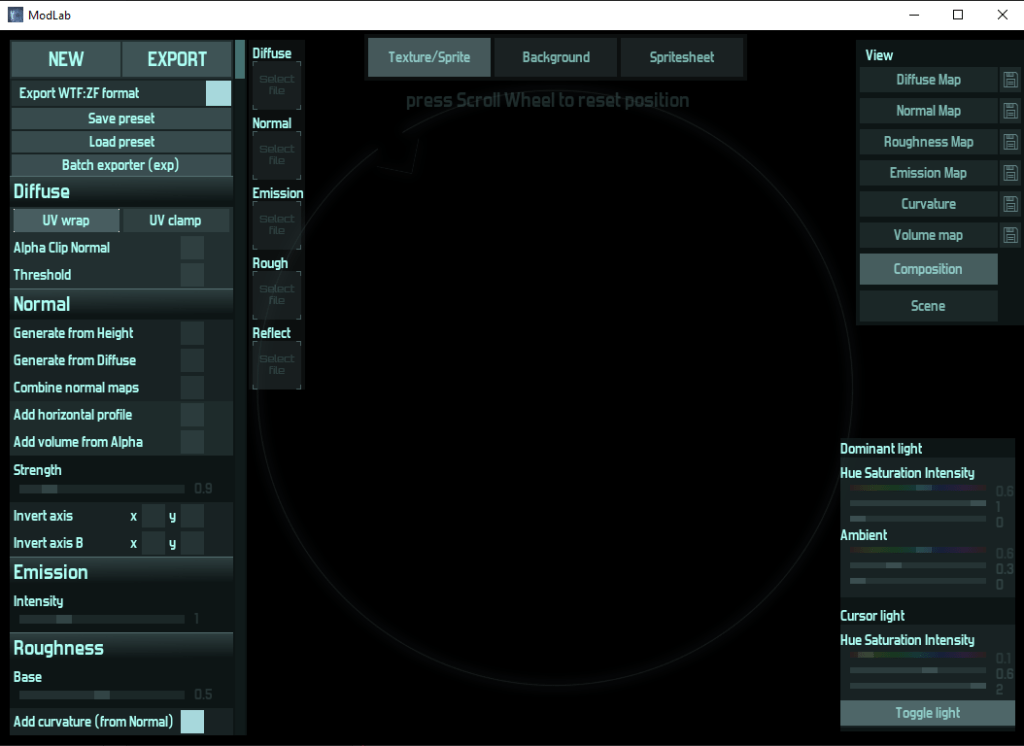
In the upper left hand corner, we have the main action, where we can import our sprites:
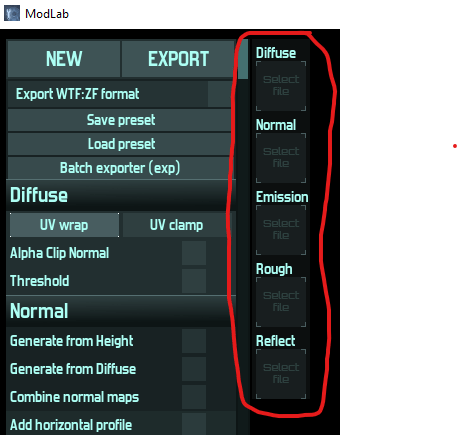
But wait, I hear you cry, like a baby in the night, there’s no place for my beautiful height map? Well, that’s why you select this option:
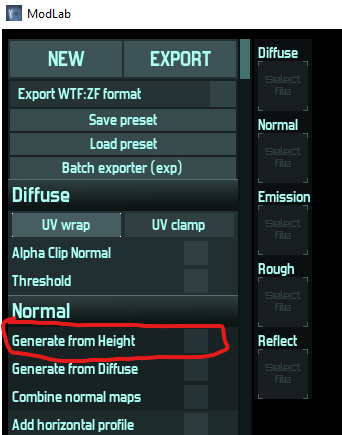
Which will replace the “Normal” select file option with a “Height” one, and you can then import your height map. Import your diffuse map first though (you’ll also notice there’s a Generate from Diffuse option as well, which can work ok for some sprites, but nothing beats a hand drawn height map).
Ok, we’ve got our diffuse map and height map imported. Looking kinda spiffy already. ModLab gives you a few lighting options, which are down in the bottom right hand corner. Dominant light, Ambient and Cursor light.
The Cursor light is a light that follows your cursor, Ambient is, well, it’s ambient, it doesn’t really do much beyond brightening or darkening the shadowed sections of the sprite, and Dominant light is a light that comes from a particular part of the little whitish ring section you can see around the sprite, being cutoff in sections (specifically from the arrow pointing inwards). You can click and drag any point on the circle to rotate the dominant light around your sprite, like this:
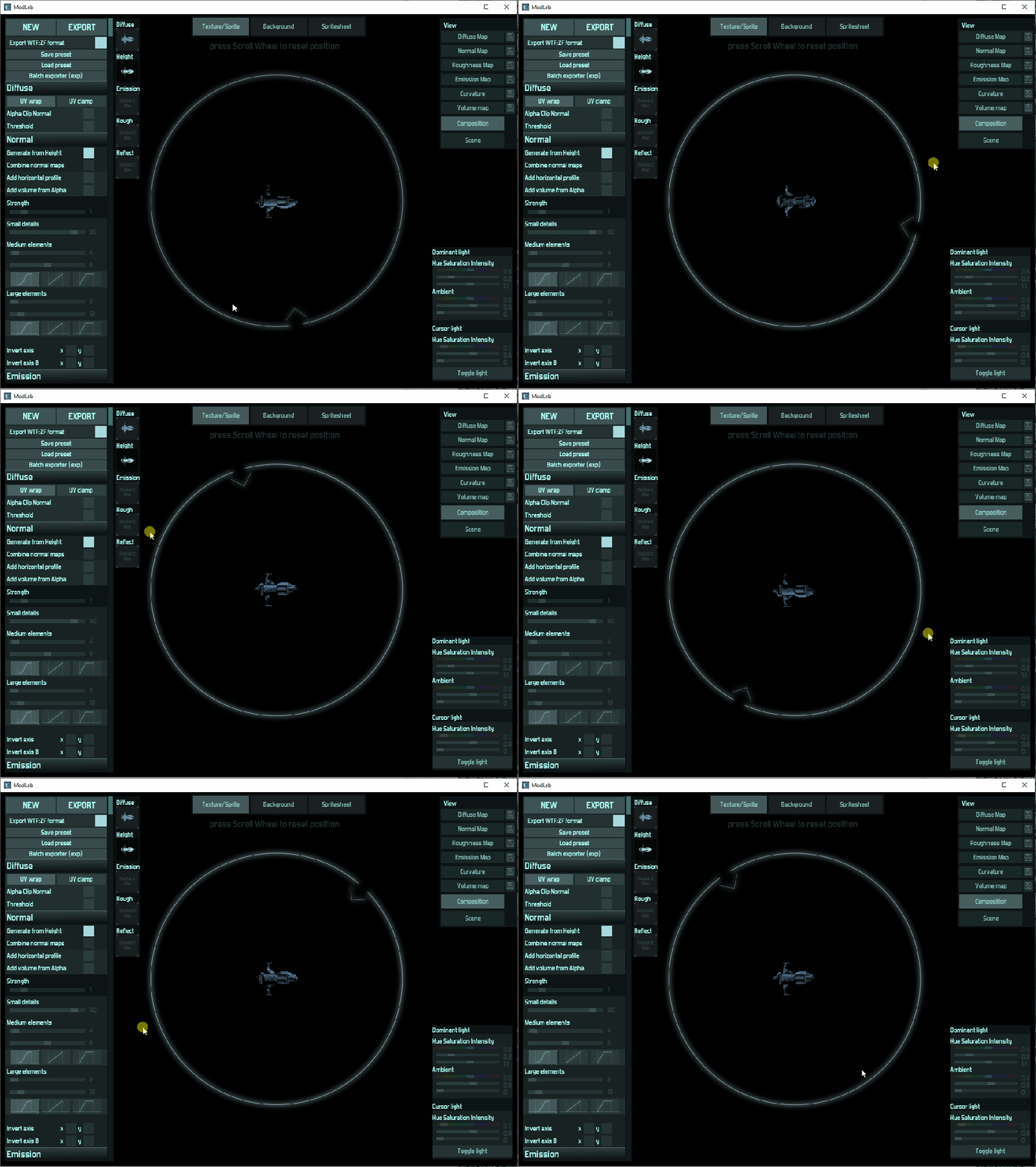
You’ll also notice there’s three bars under each light:
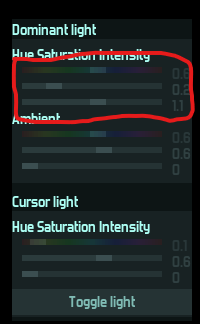
The top one is the colour of the light, the second is the saturation of the colour and the third is the brightness of the light itself. Clicking toggle light toggles the cursor light on or off.
That’s about it for the lighting, so let’s start looking at how to generate a normal map. Well, first off, there’s already a normal map that has been generated as soon as you imported your height map. You can see it by clicking “Normal Map” in the top right hand corner:
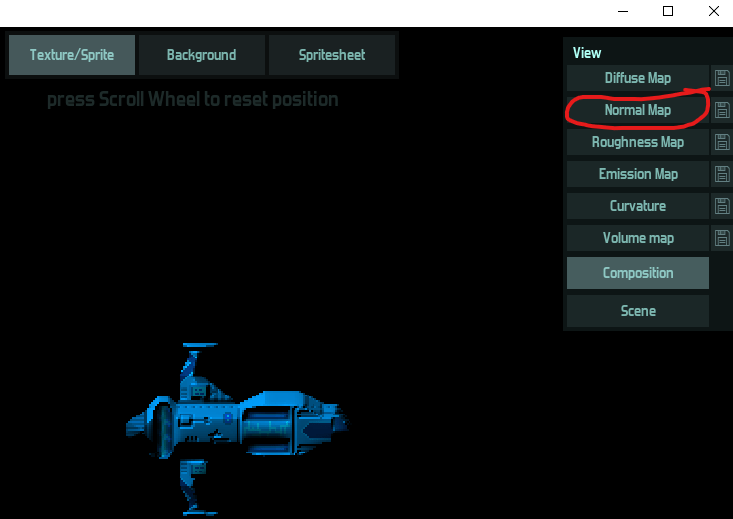
That’ll show you your normal map:
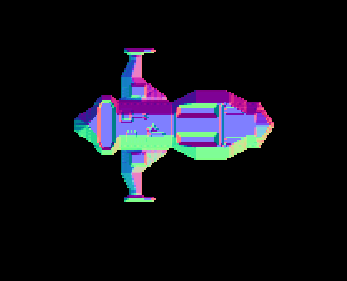
Looks kinda weird hey. Like if you drew your sprite while desperately guzzling Nerds during an acid trip that took place on a rainbow.
The colours represent what parts of the sprite should be lit when light comes from a particular direction. It makes a little more sense when we look at a normal colour wheel:
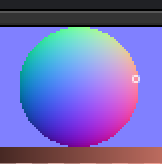
If the pixel should be lit when light comes from the right, you would colour that pixel the pinkish orange colour. If the pixel should be lit when light comes from above, you’d make that pixel the electric green at the top of the wheel, and so on. But we don’t really need to know this, because we get our normal maps generated automatically, hoorah!
Going back to our generated normal map, we actually have a bunch of options to change exactly how the normal map is generated. These are those options:
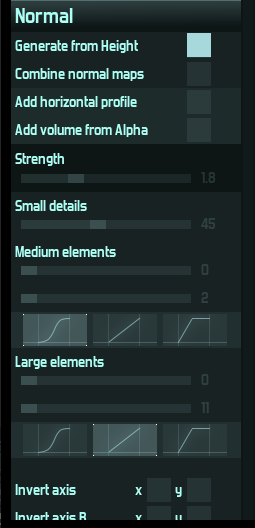
Strength is the overall “depth” of the normal map. How far apart the closest and furthest pixels are. Small details are directly related to your height map, and is basically saying “how much weight does your height map have on the generated normal”. I usually have it somewhere around 50%, but it totally depends on the sprite and experimentation.
Medium elements are “big” features of your normal map (for instance, large-ish dark or light sections would be considered a medium element), and ModLab will allow you to either cancel out the “enhanced” generation it is doing for these by setting the top bar to 0, or have it do a lot of processing by increasing that bar to 100. The bar below it is how much blur is applied, which mellows out the medium elements and makes them look more organic and rounded. Since mine is a spaceship, I think it looks better with harsher angles and distinct cutoffs between height sections, so I would have it very low, if at all.
The three images below it are the “knees” (that’s what I call them at least, because of music), that tell it how to apply the generation it is doing. The highlighted one on the left is more organic, whereas the center one is perfect for sharp angles and the one on the right…Well, I don’t really use that one. It tends to create “flat plane” like cutoffs between the heights. Kinda hard to describe, but I find it rarely looks good.
Large elements is essentially the same as medium elements, but for the overall shape of your sprite, rather than any individual sections within it (they do get effected but not by much). After all that explaining, here’s a gif of how the different sections work:

You can see that larger and larger sections are effected as you change between the small, medium and large elements. The more blurry the normal map looks, the more rounded and organic the actual 3D sprite ends up looking.
There’s no real magic to this, just spend some time tweaking the knobs and seeing how it looks (the Composition button on the top right hand side below the “Normal Map” button allows you to see your sprite in full 3D glory as you tweak).
Once you’ve got the Composition how you like it, then just click the little save button beside the “Normal Map” button:
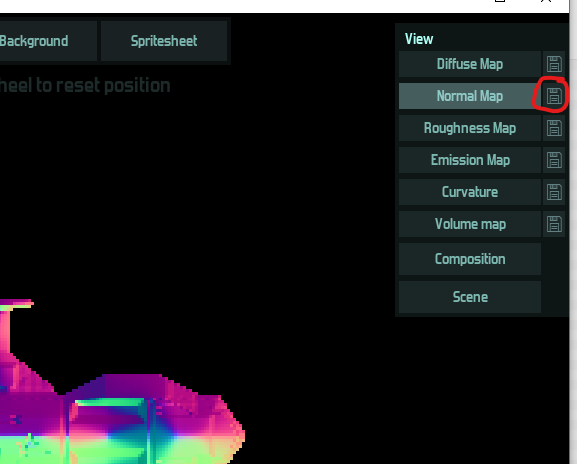
And Bob’s your cousin’s second aunt. You’ve got a normal map. But there’s more we can do.
Roughness maps.
A roughness map represents how shiny or dull a surface should be. Technically it defines how light scatters across the surface. 0 (or black) is very smooth and reflective, whereas 1 (or white) is very dull and opaque. Think the difference between a shiny metal sphere and that bunched up shirt you’ve got on the floor that you always think about picking up but somehow never do. One will be very shiny, the other not so much…
If you were doing “proper” mapping, you’d really be working with mostly single colours or small gradients across the surface, but I’ve found that pixel art tends to like more dramatic differences. In a stroke of luck, we can also generate a roughness map in ModLab. Just hover over the area where the normal strength and small details and stuff is and scroll down, and magically, you reveal some more options:
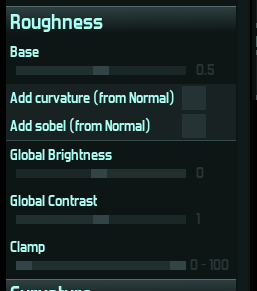
Firstly the base just defines the base colour, from black to white. Global brightness does roughly the same thing, and global contrast is…contrast, it lessens the difference between black and white. Clamp lets you ensure it stays within a range. But the real delicacy is in the Add curvature and Add sobel. You can view the roughness map the same way you view the normal map, by clicking “Roughness Map” in the top right hand corner.
Let’s have a look at the roughness map before applying the curvature and sobel:
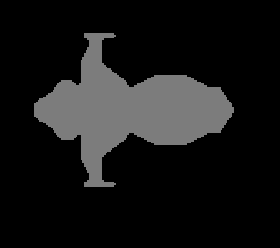
Pretty boring hey. This works fine for some sprites (we were looking at the Composition with this roughness map before, and it wasn’t bad), but sometimes you want the sprites to be kinda “shiny” and have glints that light up as the light moves around. Let’s start off by turning on the Add curvature (from normal):
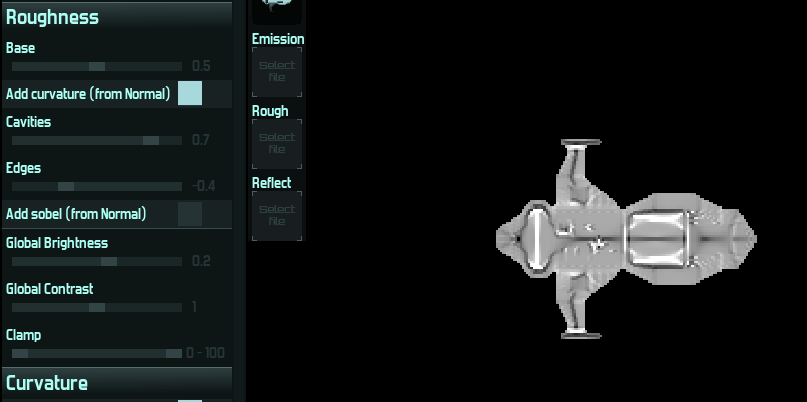
I’ve turned the cavities up and the edges down a little and voila, there’s some details. Let’s have a look at it in motion:
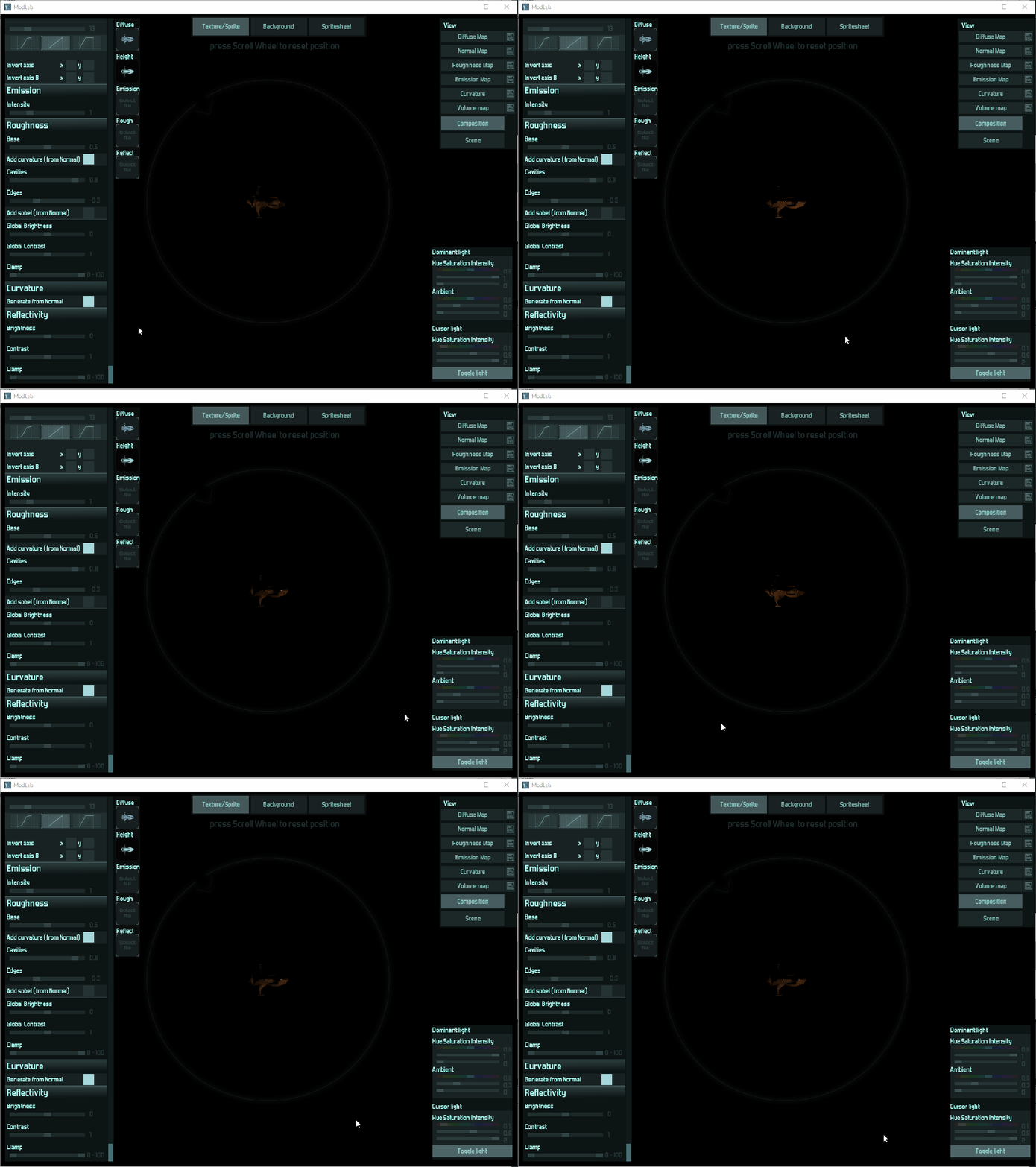
I’ve found that the roughness is best viewed by using the cursor light with high intensity, and held far away from the sprite. You can see that along the “ridge” where the center of the ship is, there’s some sparkly glinting pixels. It makes that area look reflective. If you look at the roughness map above the gif, it corresponds with the blacker sections of the map.
Ok, so what happens if we really darken the roughness map up? It should become super reflective right? Well…kinda…
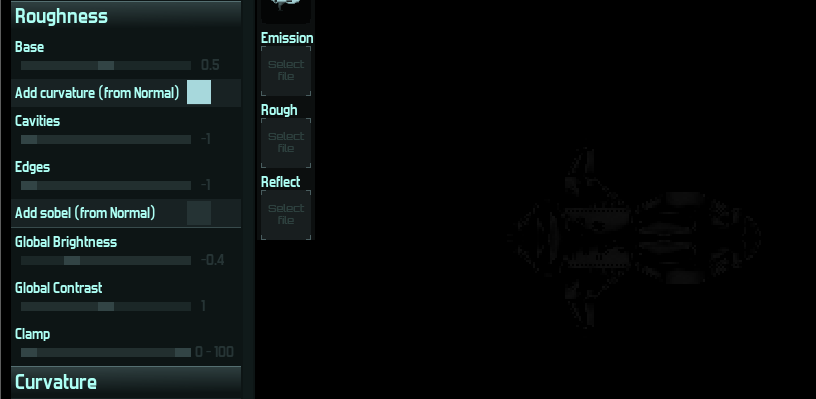
Here I’ve pulled down all the cavities and edges to -1 and pulled the global brightness down a little bit until the roughness map is only just visible. What does that look like in the composition now?
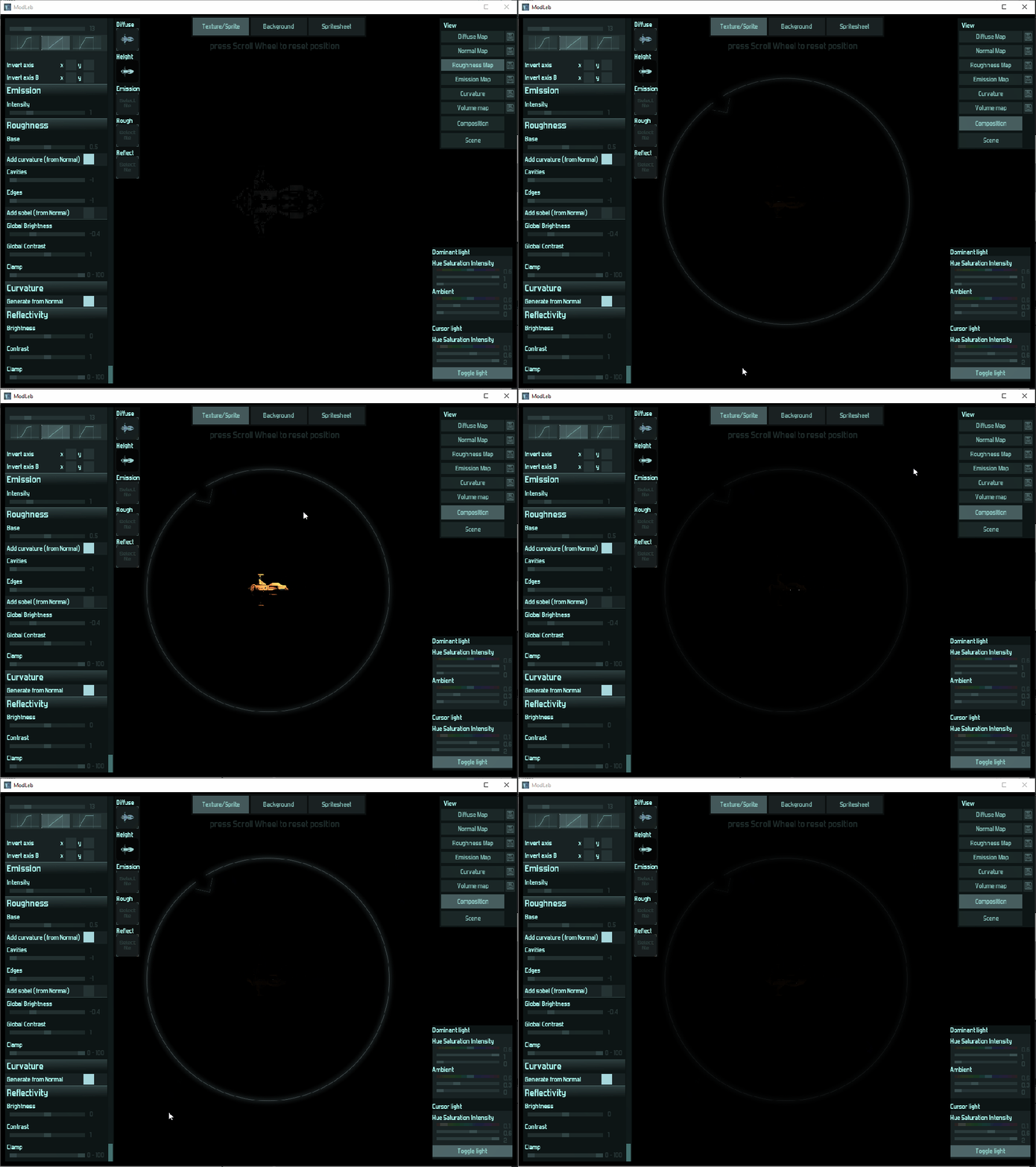
Heh, not really all that different? Why is that? Well, it’s because the roughness is effected by both the actual roughness map, the height of the normals and the height of your light. If I reduce the strength of the normal map, so everything is much flatter (and therefore reflecting more towards the screen, rather than off to the sides) then we get a much better idea of how a smooth surface looks:
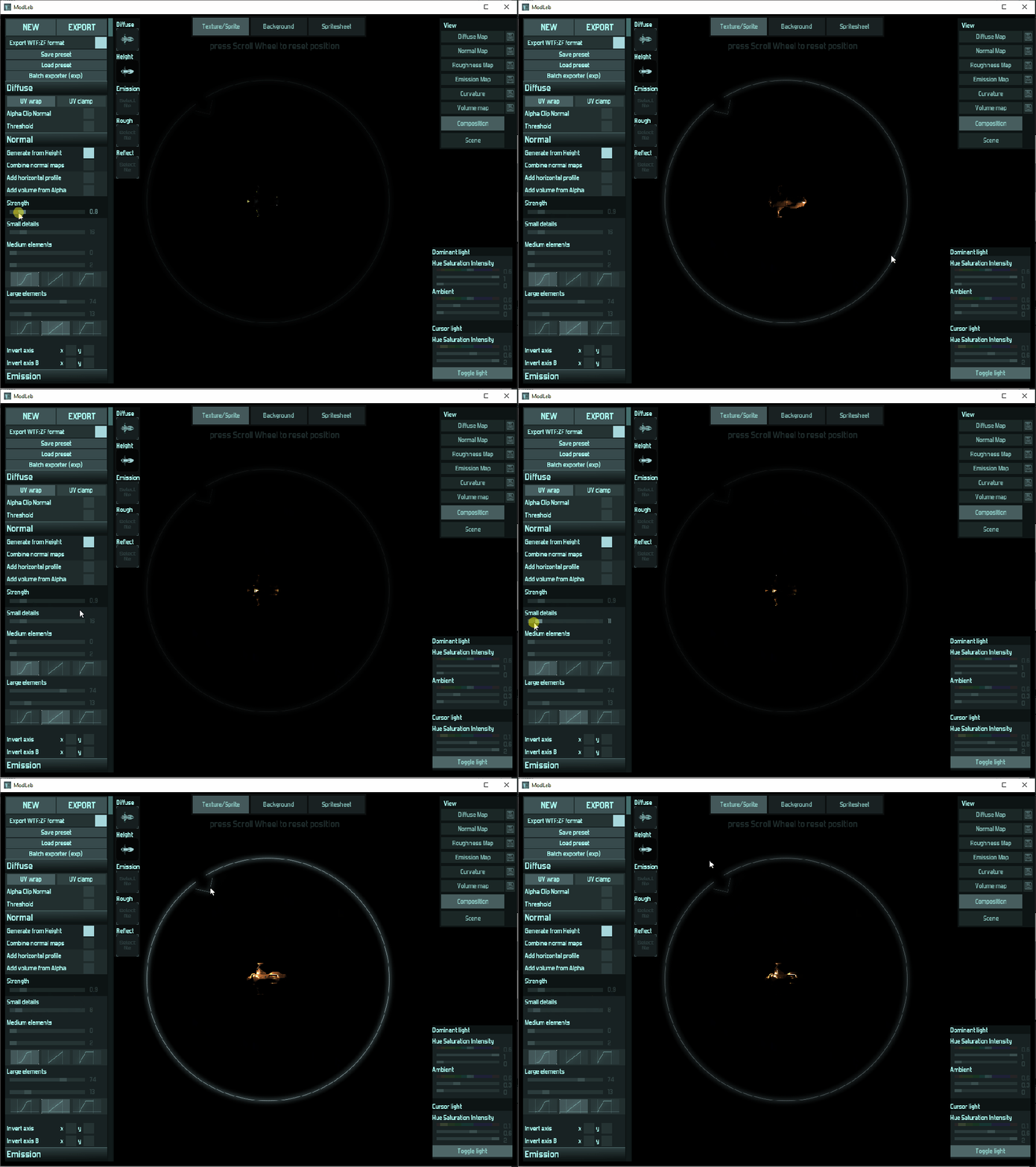
That’s much more “reflective” looking. The “Add sobel (from Normal)” option has basically the same effect, it just uses a different algorithm to calculate how the normal map effects the roughness.
Exactly how this will effect your lighting system varies between the systems, so you’ll have to do some experiments and test out different roughness settings to see how to get particular styles of reflectivity.
We can then save our roughness map the same way we did our normal map, the little floppy disk save icon next to the “Roughness Map” in the top right hand corner. So now we’ve got 4 maps generated, the diffuse map, the height map (which isn’t used in most lighting systems, but is vital for the generation of the normal), the normal map and the roughness map. There’s generally three more maps we’ll need.
Ambient Occlusion maps (AO maps).
Ambient occlusion is a representation of what should naturally be shadowed on your sprite. Sit in a dark room in front of your monitor, now cup your hands in front of your face as though you were going to use them as a cup to drink from. You’ll notice how the light from the monitor hits the rim of your fingers, but the area inside the “cup” is shadowed. That’s essentially ambient occlusion. It will tell your lighting system “don’t light these areas as much, if at all”.
As with the height map and the roughness map, ambient occlusion is another greyscale map, with white meaning “can take full light” and black meaning “this should never be lit”. Another way of thinking about it is as a multiplier for your light. If it is white, your light is multiplied by 1, so it stays as it was, but as you go down the greyscale gradient, the multiplier gets less and less until it hits 0 and any sections coloured with black pretend the light doesn’t exist and there is only shadow.
There is no easy way to automate AO map creation that I have found. AwesomeBump does an “ok” job for some sprites, but it doesn’t do it great. I think it’s much better to just draw this map by hand. But you don’t have to start completely from scratch! Very often, your height map is at least a somewhat accurate facsimile of your ambient occlusion! The parts that are “deeper” or recessed are often the very parts that shouldn’t be lit as much.
So I usually start with a clone of my heightmap, brighten it up a bit (having sections that are too dark can look strange sometimes, so my AO maps are often, but not always, made so that the darkest colour on them is above the midpoint from white to black).
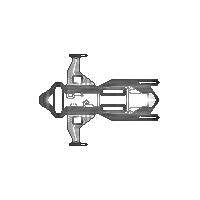
That is the ambient occlusion for my ship. You’ll notice most of it is white, since all those areas should be lit all the time, but the edges and some details are darker. The edges because it helps to sell the illusion of depth (the sides of the ship fade away into darkness) and the details because it helps sell the 3D illusion when there is interplay between light and dark across a sprite. As I said, this is pretty much the height map brightened up and then manually edited.
Now we move on to metal.
Metallic maps.
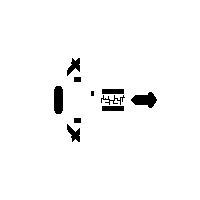
Metallic maps are usually quite simple. If something is metallic, you paint it white. If not, you paint it black. Maybe do a little grey-white if you want to simulate something like corroded metal, but really, I’ve never found pixel art to have high enough detail to bother with doing something like that. It all looks the same in the end, at least to me. So just duplicate your diffuse map and start bucket filling stuff white or black. Here’s the metallic map for the ship:
Finally, if you’re very lucky, your lighting system will have emissives…
Emissive maps.
There’s not really that much to say about these. Just look at your diffuse map, pick out the things that are actual light sources, and cut out everything else. Maybe tweak the brightness a bit to really get that glow going, but mostly you’re done quite quickly when making the emissive map.
Here’s it for the ship:
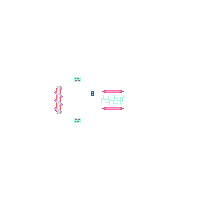
Literally just the sections of it that are light sources, but brightened up a bit.
The end…?
Finally, we’ve reached the end. We’ve had peaks and valleys over our time together! Remember when you dropped your hat in that puddle and we laughed and laughed. Oh how we laughed! But we’re finally here. Now you’ve got 7, count em, seven! maps that you can use in your lighting system of choice. And hopefully you understand the theory behind what you need to draw for each of them a bit better than you did before. Because a lighting system itself is useless without the data packed into these maps.
Here’s the results of following the above steps in-game, looking all lit and pretty.
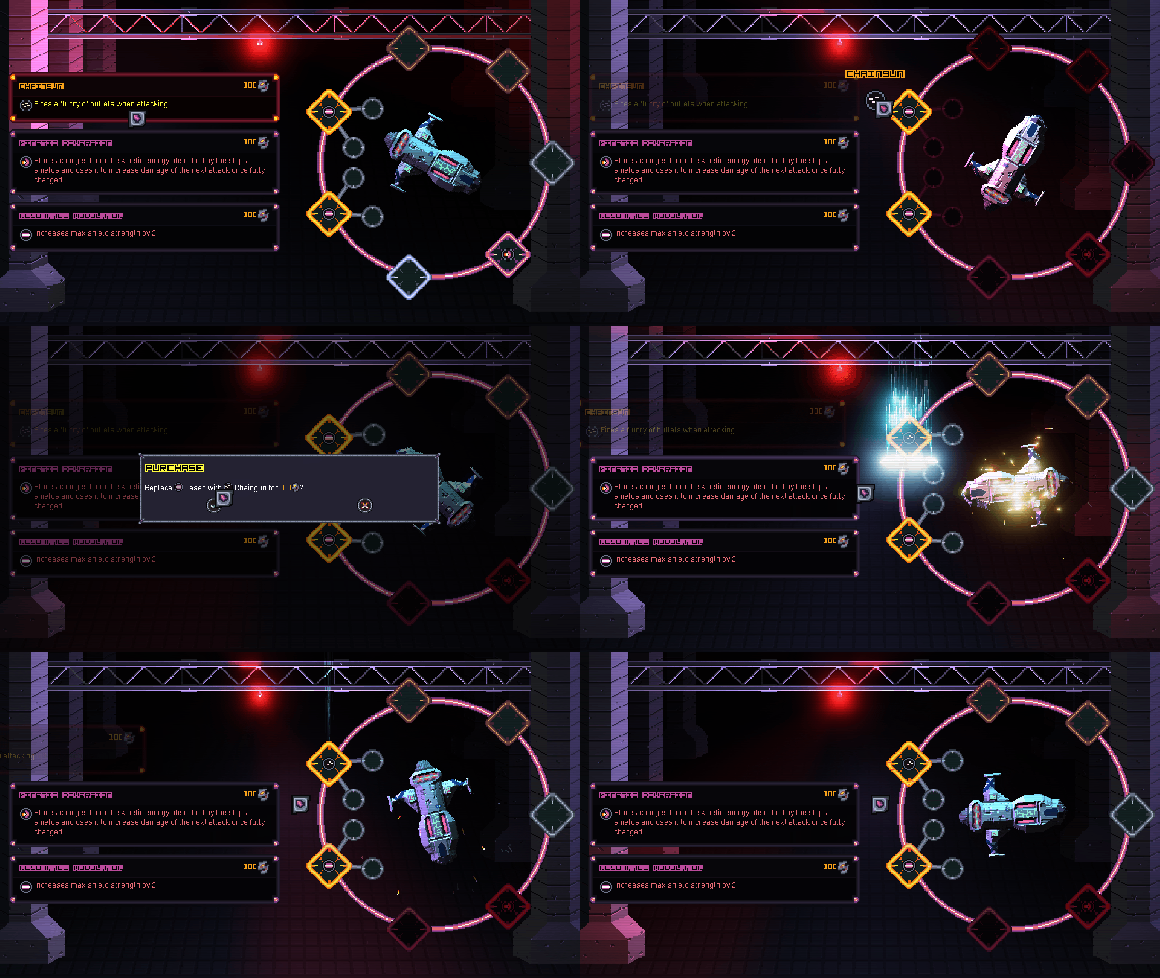
If you use GameMaker, like I do, and you’re interested in a lighting system, I would recommend either Crystal or Eclipse, with a preference for Crystal (though they look a bit different from each other in action, so which one you pick would probably depend on which of them suits the chosen aesthetic better). I’ve used the above workflow for both of them and it suits them fine.
And please, don’t forget to swing me a wishlist if this has been helpful! The demo of Dice Trek is also up on Steam if you wanna see these 3D pixel art sprites in their full glory.
As a bonus, here’s a timelapse of me making a rough version of a new ship from scratch (well, starting with the diffuse map and then doing everything else).